Features
よむ runs one loop: find Japanese in the wild, understand it quickly, and save the useful bits for study.
Popup Lookup And Mining
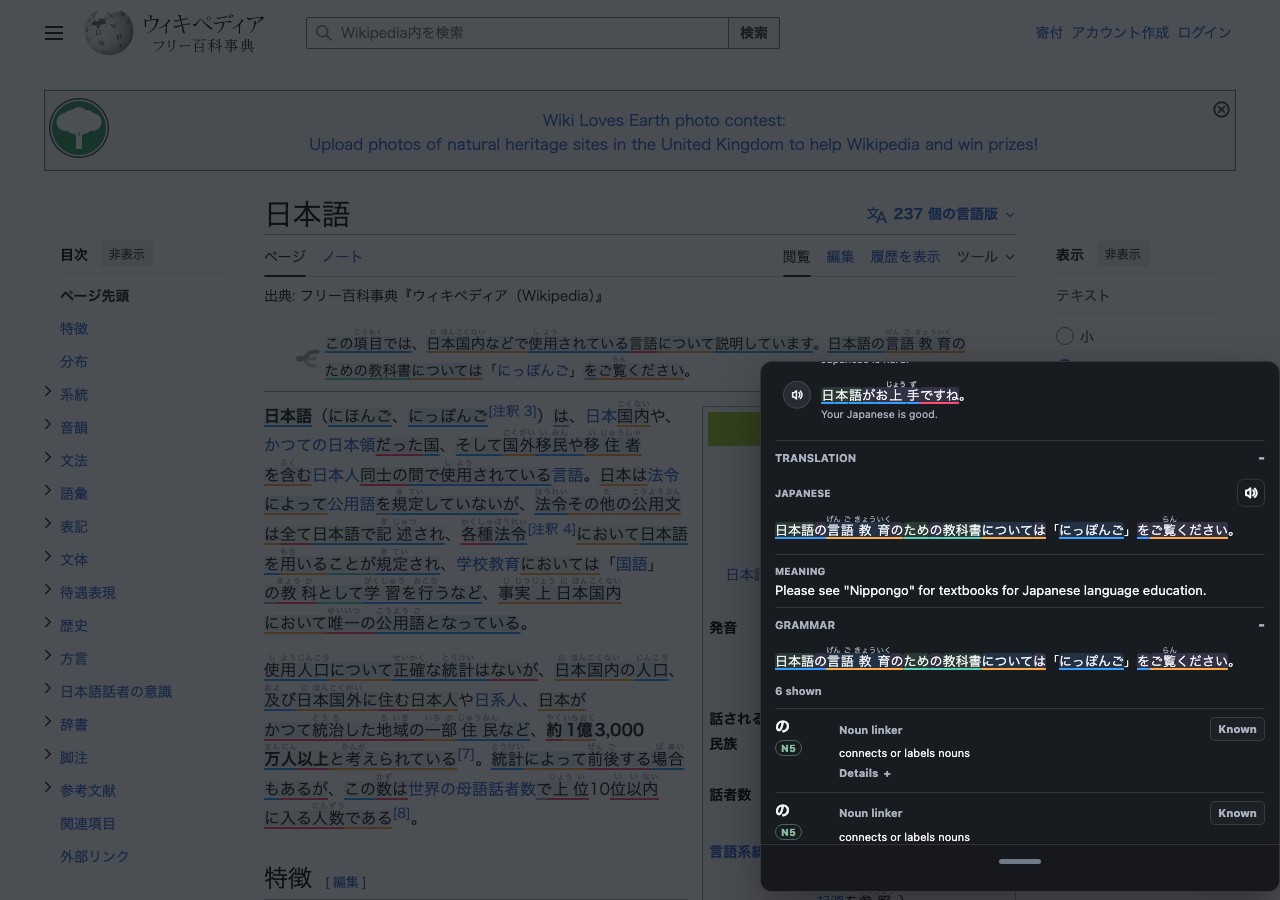
Tap, select, or hover Japanese text to open the popup. It shows the reading and meaning right away, plus whatever you've turned on: Jiten definitions, optional JPDB data, imported dictionary entries, pitch and frequency, audio, example sentences, and kanji details. Mining buttons sit at the bottom.
To let the official jpdb reader, Jiten Reader, or Yomitan own popups, turn off Reader -> Show Yomu lookup popup in Settings. よむ keeps annotations, media tools, mining, and study features without opening a second popup.
Keyboard shortcuts can move lookup to the previous or next parsed word, and if you have selected a piece of text, navigation stays inside that selection. Popup Japanese font family and weight are configurable, and the default stack matches jpdb.io for kanji, readings, example sentences, grammar snippets, and dictionary terms.
API mining actions can add a word, mark it Never Forget, blacklist it, or send review grades, and can be turned off while keeping popup lookup. When Anki is enabled, よむ can create a compact note with the word, reading, meaning, source sentence, source link, local dictionary content, optional context images, and Immersion Kit audio. The word-first Anki front can hide the reading, sentence, or image if you want a stricter prompt.
Furigana and word colors are separate controls. You can show furigana only for harder kanji, show all parsed readings, hide furigana for known words, color words by Jiten, JPDB, or Anki state, color them by pitch accent, or turn highlight coloring off.
The popup also has optional study helpers for the current sentence. The translation tool generates a plain sentence translation when you open that section, and the grammar tool highlights likely grammar patterns with short explanations and guide links.
Yomitan Dictionaries
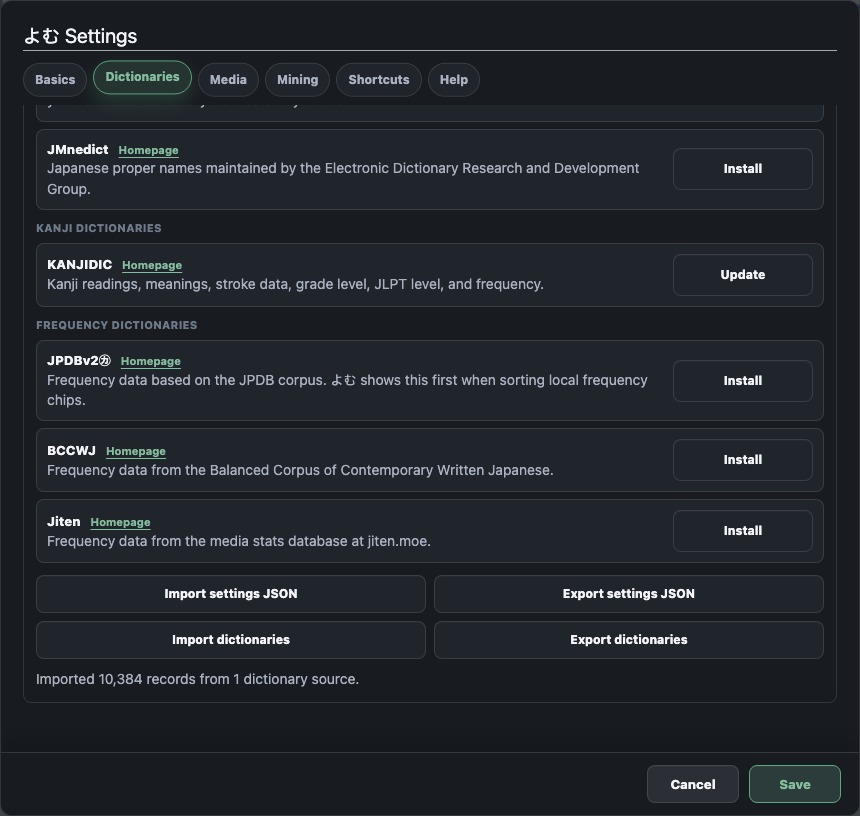
よむ can import Yomitan dictionary ZIP files, Yomitan settings exports, and dictionary backups. Imported dictionaries stay local in your browser. If you do not have an API source or Anki connected, よむ can still use public lookup and local dictionary words for the study page after you download JMdict or import a Yomitan ZIP in Settings.
This gives you native-language dictionaries, monolingual Japanese definitions, frequency, kanji, or pitch dictionaries without depending on a remote service for every lookup.
Audio And Examples
The speaker button tries your configured audio sources in order. The default setup uses public Japanese audio sources, Jiten and optional JPDB word audio, and browser text-to-speech as fallbacks. If you already use a Yomitan-style audio source, you can add it as a custom URL.
Example sentences can come from Jiten/JPDB public example rows, Immersion Kit without an API key, or Nadeshiko when you add your own Nadeshiko key. You can also use Immersion Kit + Nadeshiko together; よむ blends the results in a stable order so the same word does not reshuffle every time you open it.
Examples can show Japanese, translations, thumbnails, audio, and source filters. Settings let you choose categories, length limits, image visibility, translation visibility, playback speed, and one-time hover audio on desktop. To practice without seeing English immediately, turn on blurred example translations and reveal them by tapping the translation.
Kanji Drilldown
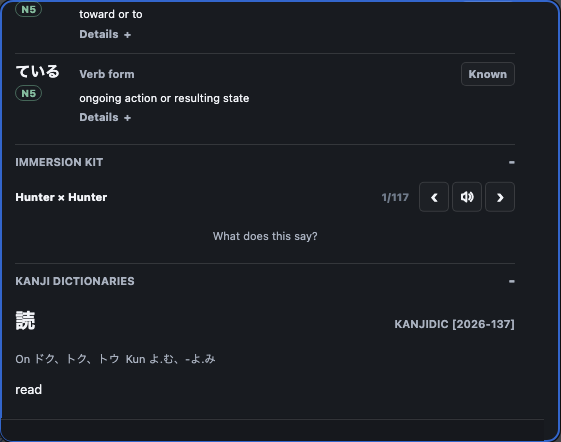
Click a kanji inside the popup headword to open a focused kanji panel. Depending on your settings and imported data, it can show Jiten and optional JPDB facts, stroke count, grade, JLPT level, RTK data, related words, component hints, KanjiVG stroke tracing, and a small drawing pad.
Kanji origin sources are modular and license-aware. You can turn off optional public sources independently.
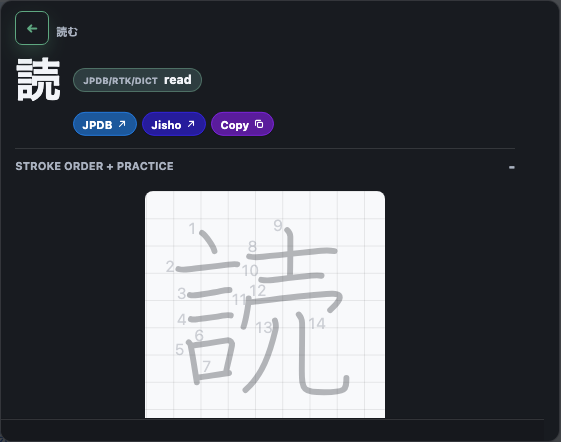
Image And Manga OCR
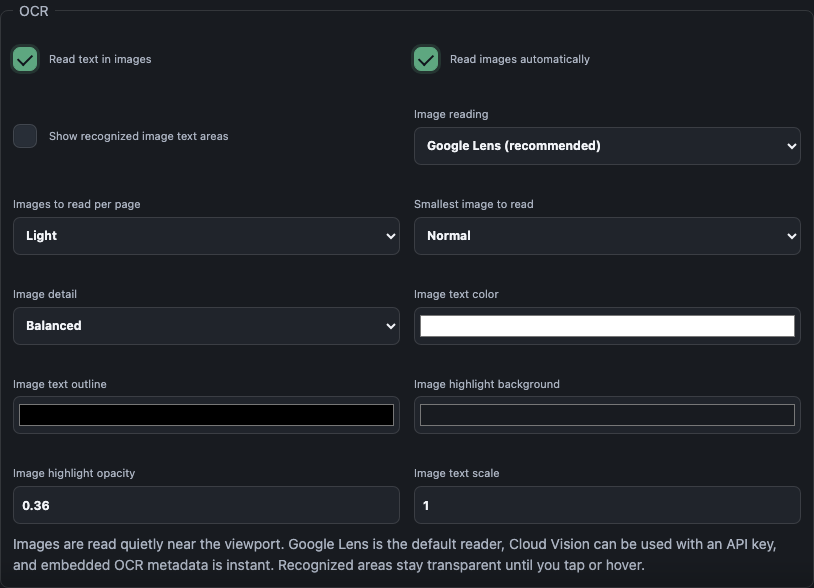
OCR lets you tap Japanese text inside images. よむ can use embedded OCR metadata when a site provides it, or a local OCR app/server for engines such as MangaOCR, PaddleOCR, Apple Vision style results, and YomiNinja-shaped responses.
Recognized text stays lightweight: touch targets sit over the image without covering it until you tap or hover.
Use this for manga panels, screenshots, and image-heavy pages where normal text selection does not work. The image is not sent anywhere unless you enable a local OCR endpoint, and that endpoint is the one you configure in settings.
Video Subtitle Mining
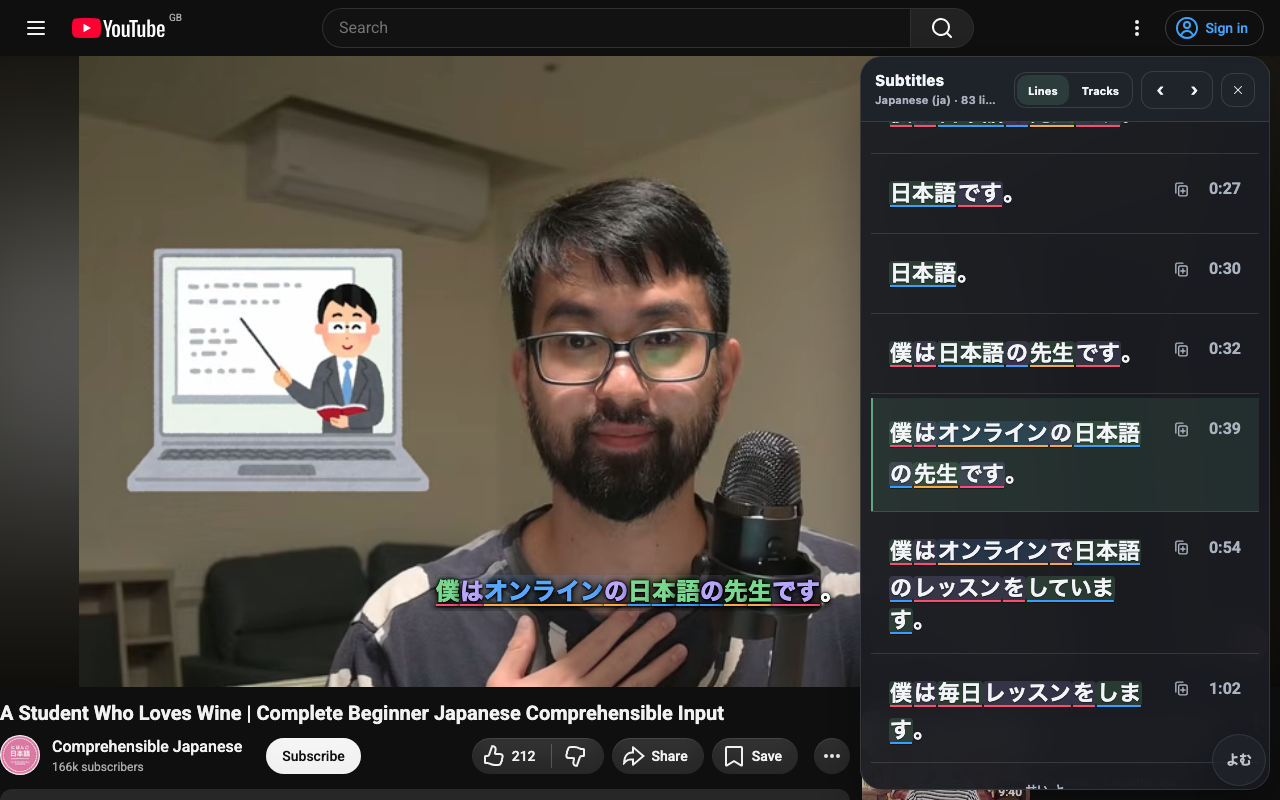
よむ can add an ASB-style subtitle overlay for video pages. Japanese subtitles can be parsed into tappable words, native-language subtitle tracks can be shown as a secondary line, and the transcript panel can sit left, right, or below the video with the active line highlighted while you read.
The transcript is a reading surface too: visible Japanese lines hydrate into the same lookup words as the overlay, so you can skim, jump to a line, and open a popup.
For local files, open the Yomu video player, drop in a browser-supported video, and use the Subtitles button to add Japanese or native subtitle files. The page creates normal browser video and text tracks, so the same overlay and transcript tools work without a desktop bridge.
You can use shortcuts for previous subtitle, next subtitle, copy subtitle, and mining. The transcript panel is off by default, opens from the subtitle controls, and can also be set to open only while the video is paused. On phones it becomes a bottom panel so the video stays usable.
YouTube Immersion Filter
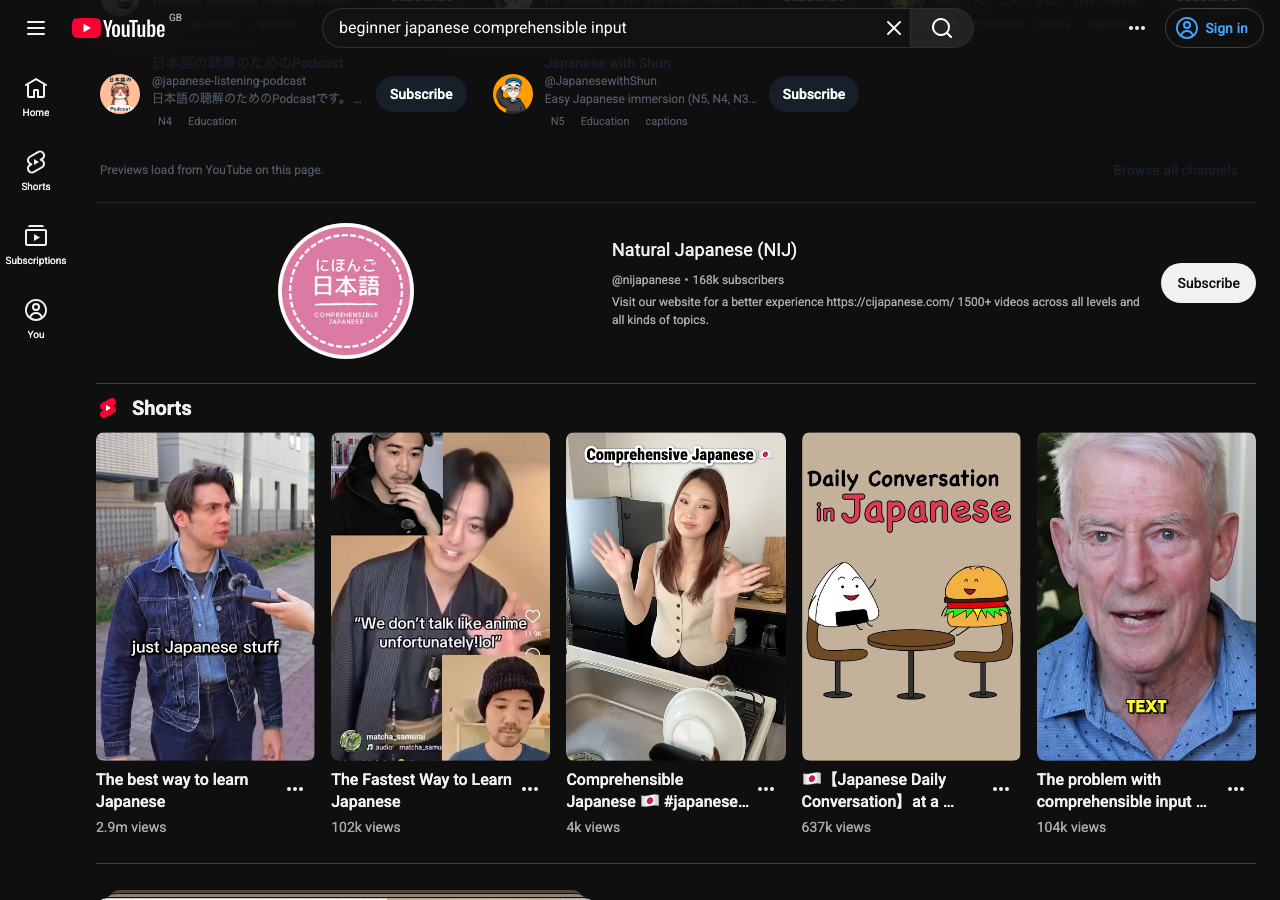
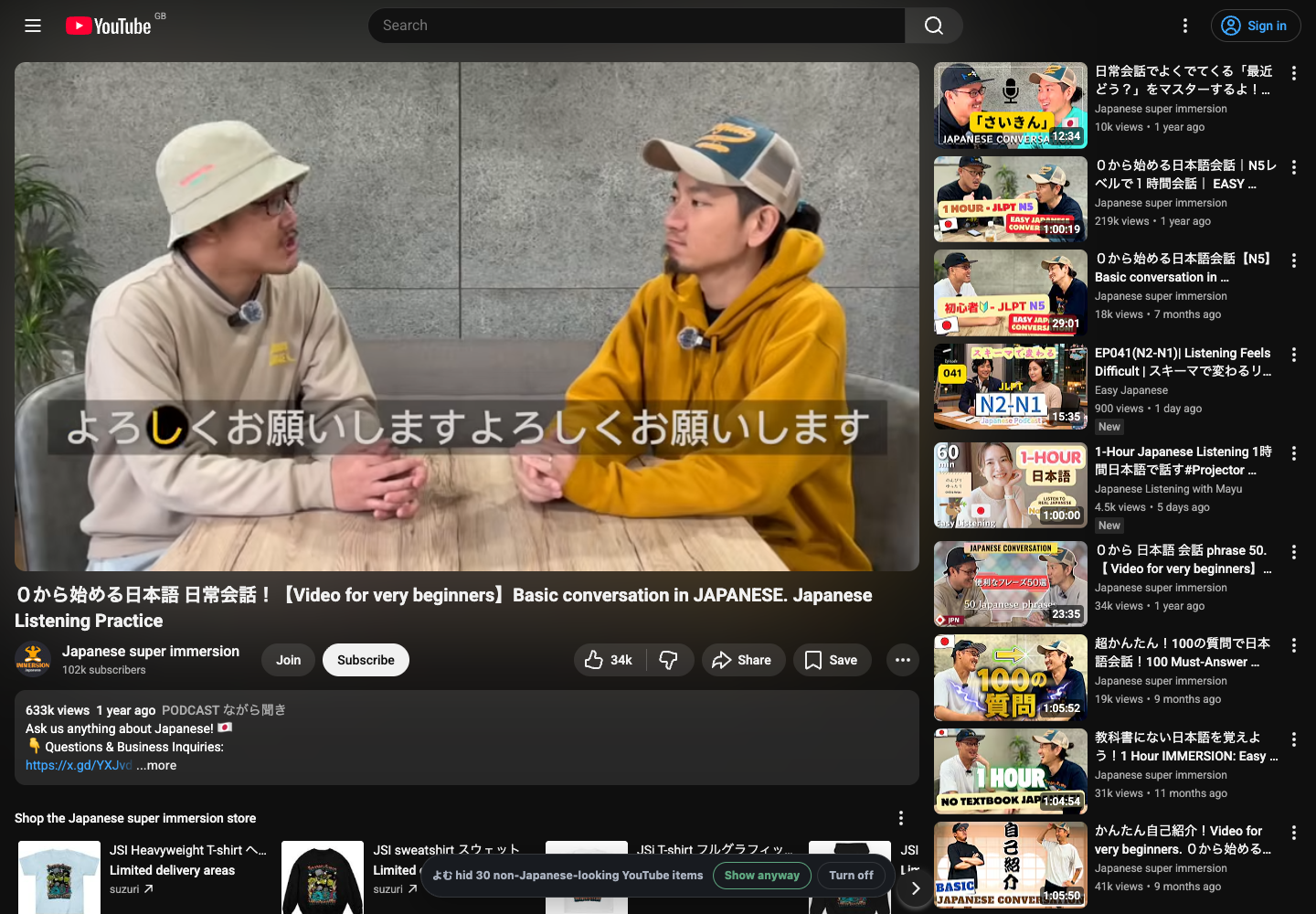
The YouTube filter is on by default so recommendations stay focused on Japanese. When a video id is available, よむ checks the original title via oEmbed, keeps Japanese-learning and comprehensible-input titles even when written in English, and hides non-Japanese-looking cards across recommendations, search results, and sidebars. Playback, subtitles, and よむ controls keep working.
The temporary notice shows how many cards were hidden and disappears after a few seconds. Use Show hidden videos to reveal them, Hide hidden videos to filter them again, Hide notice to stop showing that notice while keeping the filter enabled, or Alt+Y to toggle the filter itself.
The separate Prefer Japanese site language and location setting asks multilingual pages for their Japanese version by combining browser-language hints, Japan locale/location hints, Japanese preference cookies, hreflang alternates, and common URL patterns such as en.example.com or /en. The よむ puck includes the same toggle so you can turn that request on or off from the page; when よむ knows the original English/default URL, turning it off returns there.
On the YouTube home feed, when よむ hides enough English-heavy recommendations, it can also offer a dismissible starter guide of Japanese YouTube channels. Use Later to hide it for the current page, Never show to turn it off, or Show all to browse the full 100-channel list with direct subscribe links.
Anki And Mobile Handoff
Anki support is optional. With AnkiConnect reachable, よむ can create cards from popup lookups, subtitles, and OCR; detect existing cards; update matching notes; adapt to existing decks and note types; and power Anki-backed review/status features in the new-tab page.
On a phone or tablet, the full Anki setup still uses desktop AnkiConnect: the phone does the reading, the computer does the Anki work. See the step-by-step phone, iPad, or Android setup in Getting Started.
Mobile handoff is deliberately narrower. On iPhone, iPad, and Android, よむ can open AnkiMobile or AnkiDroid when AnkiConnect is not available, but that path creates new-note drafts only. Existing-card status, note updates, automatic deck scans, media writes, full field mappings, and review queues still need desktop AnkiConnect.
If you already use RTK, Core, anime-card, or other nonstandard Japanese decks, keep desktop AnkiConnect reachable. よむ inspects existing Anki shapes automatically, suggests field mappings for expression, reading, meaning, sentence, audio, and image fields, and mines into that shape when it can infer a fit. If matching is not enough, the cleanest route is to use the よむ note type or adjust mappings before mining.
If you do not use Anki, leave it off. Jiten or JPDB mining and local dictionary lookup still work without it.
New Tab Study Page
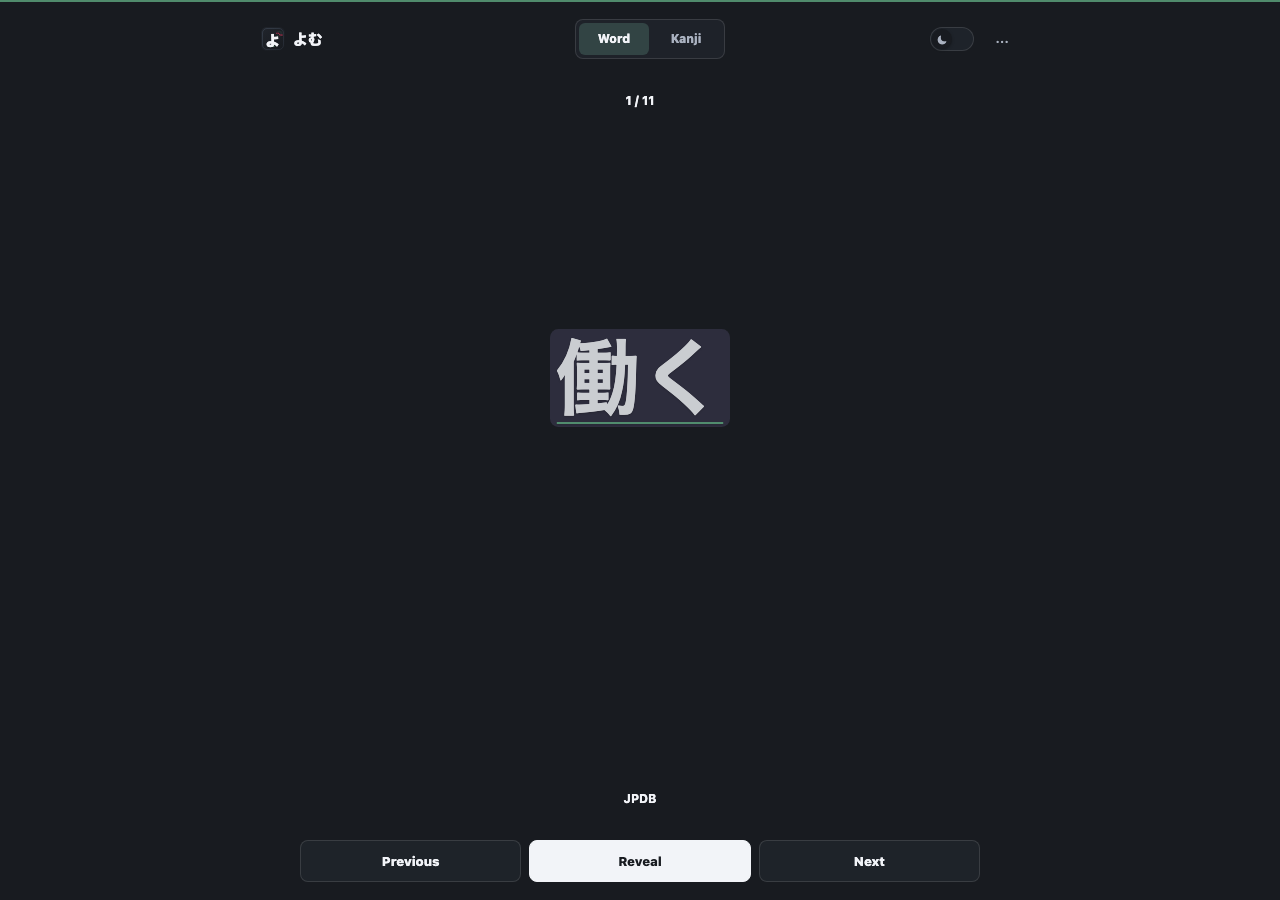
よむ includes an optional study page. Use the full address after opening that local or hosted page as a browser home page, new-tab page, or iPad Home Screen shortcut. It uses your accent color and tries Anki study words when AnkiConnect is reachable, then Jiten, then JPDB, then local dictionary words. A new install starts by sending you to Settings > Dictionaries so JMdict or another Yomitan ZIP can be downloaded into local browser storage.
On the hosted page, the installed よむ userscript can bridge local AnkiConnect requests on the same computer. For phone and tablet setup, follow the Tailscale steps in Getting Started instead of pointing mobile よむ at localhost.
On iPhone, iPad, and Android, this is often the easiest daily-review surface. For full Anki status, updates, automatic deck scanning, and review queues, keep desktop Anki running with AnkiConnect and point よむ at a reachable LAN or Tailscale URL such as http://desktop-name.tailnet-name.ts.net:8765 — AnkiConnect's default 127.0.0.1 means "this device" and is unreachable from a phone. Without AnkiConnect or an API source, dictionary-backed words keep the page useful once a dictionary is installed. Step-by-step mobile Anki setup is in Getting Started.
The hosted new-tab page carries a build id and checks for a fresh version.json on load. If a mobile shortcut keeps showing an older settings screen after a release, open the full new-tab URL in the browser, refresh, then close and reopen the shortcut. The troubleshooting steps in Getting Started cover the heavier reset path.
Help And Support In Settings
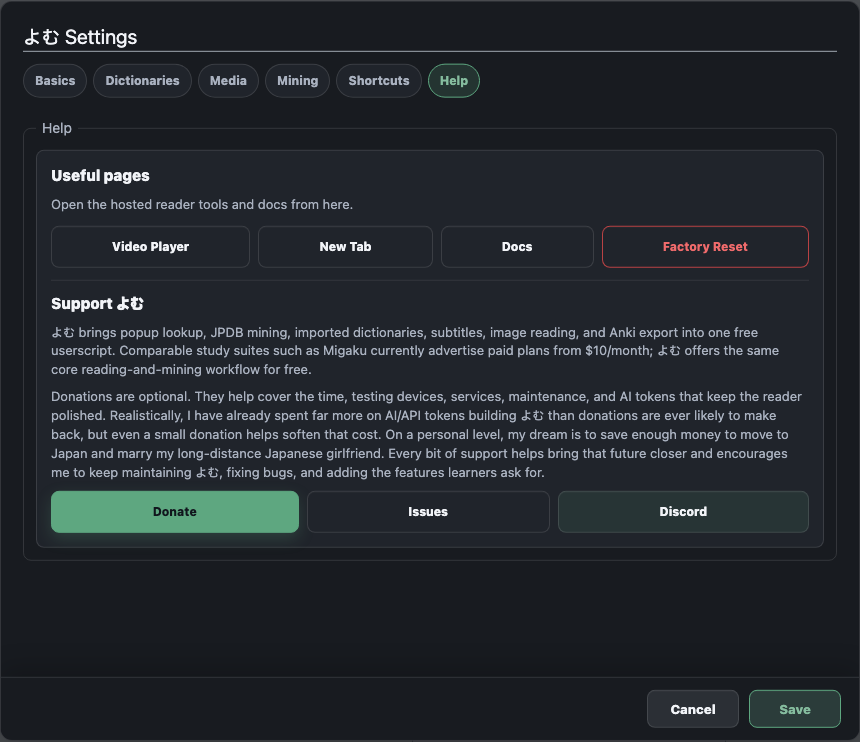
The Help tab includes quick links to the hosted tools and docs, GitHub issues, Discord, donation support, and a Factory Reset action that clears よむ settings, API keys, cached data, and imported dictionaries back to defaults.